

Commission disclosure: This article contains a promotional link to CreateStudio. If you use it, ProdifyDigital may earn a commission at no extra cost to you.
If you are a small-business marketer using a desktop animated-video editor, this guide shows you how to check narration, mouth timing, and scene continuity before export so your explainer feels polished and understandable. The goal is not frame-perfect perfection; it is a practical way to catch the issues that most often make short animated videos feel rushed, unclear, or unfinished. If you are still comparing trial options, the broader CreateStudio trial overview covers access and billing questions, while this support article focuses only on the quality-assurance step.
One important product note: the official trial page and help center, checked 16 September 2026, describe a 14-day All Access trial, automatic monthly billing on day 15, desktop installation for Windows and Mac, and 750 AI credits in the trial. The same help article also warns that cancelling the trial permanently deletes video creations in the account. That billing and retention detail matters if you are deciding when to export or back up work, but this article’s main purpose is to teach the review process itself.
Direct Answer & Introduction
What to check before export
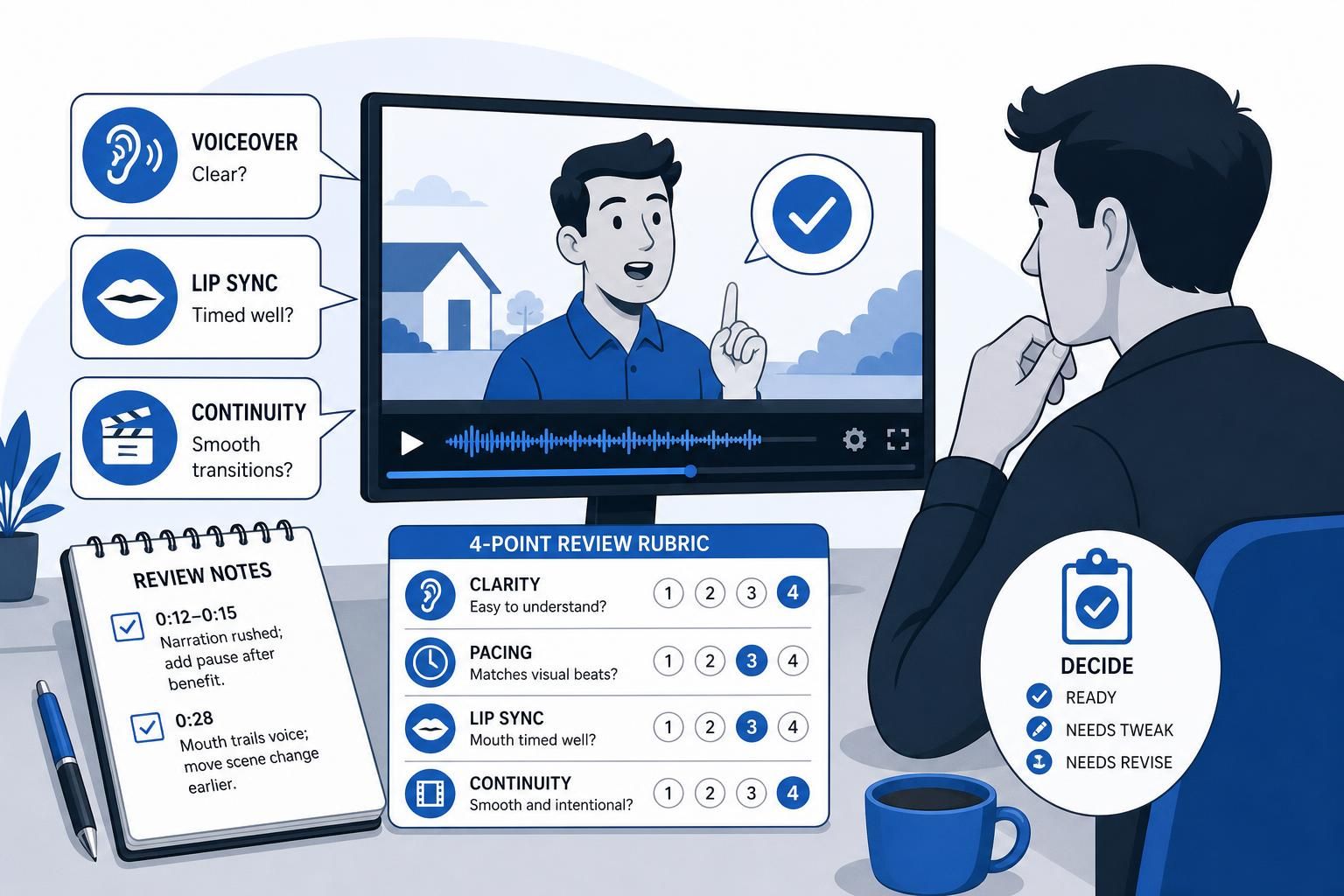
Review the voiceover first, then the lip sync, then the scene transitions. Ask four quick questions: is the narration easy to understand, does the pacing match the visual beats, do the mouth movements broadly match the spoken sounds, and do the cuts feel intentional rather than abrupt? If any one of those answers is weak, the explainer may still be usable, but it usually deserves another revision pass before export.
Who this helps and what outcome to expect
This process is for marketers, founders, and solo creators who need short animated explainers that feel credible without spending hours on frame-by-frame polishing. The outcome is a repeatable review habit: you can decide whether a scene is ready, needs a small fix, or needs a deeper rewrite. That is usually more valuable than chasing absolute technical perfection, especially in short-form business videos.
Earlier planning steps make this easier. A clean animated explainer storyboard reduces timing problems, and careful template customization lowers the chance that the audio and visuals fight each other.
Fundamentals
Voiceover quality starts with intelligibility
In explainer work, “good” audio usually means the viewer can follow the message on the first pass. That depends on clear pronunciation, sensible pacing, and emphasis on the words that carry meaning. You do not need broadcast-style audio design to get value from an animated video; you do need enough clarity that the viewer does not have to reinterpret the line from the visuals alone.
Lip sync is about believable timing, not robotic perfection
Lip sync review is less about matching every tiny mouth shape and more about whether the timing feels plausible. Small mismatches can be acceptable in stylized animation, especially when the scene is short or the character is not the focal point. Larger problems appear when the mouth starts late, ends too early, or keeps moving while the audio pauses.
Continuity shapes perceived polish
A clean voice track can still feel weak if the visuals change too abruptly. Check whether the speaker’s position, expression, and scene context stay consistent across cuts. If a template or asset swap creates a jump that is obvious without sound, viewers may notice the edit before they notice the message.
Main Process / Strategies
Use a three-pass review instead of one loose watch-through
A useful review process has three passes. First, listen without looking closely and judge the narration on its own. Second, watch with sound and inspect lip sync, pacing, and scene timing together. Third, mute the audio and scan for visual discontinuity, awkward pauses, or transitions that only work because the narration is covering them.

This structure is especially helpful if you are inside a trial window and want to spend time where it matters most. It helps you identify whether the main issue is the script, the delivery, or the visual edit before you start polishing the wrong layer.
Apply a simple four-point rubric
A compact rubric makes the review less subjective. Score each item from 1 to 4:
- Clarity: Is every sentence easy to understand without strain?
- Pacing: Do the pauses and sentence speed match the on-screen action?
- Lip sync: Do the mouth movements feel timed to the spoken words?
- Continuity: Do the scene changes feel smooth and intentional?
A score of 4 means the issue is barely noticeable. A score of 3 means acceptable but worth a small tweak. A score of 2 or 1 means the scene likely needs another pass before export. This is not a technical standard; it is a practical decision tool for marketers who need quick, consistent checks.
Worked example: a five-scene explainer
Imagine a 45-second explainer for a local service business. Scene 1 introduces the problem, Scene 2 shows the process, Scene 3 highlights a benefit, Scene 4 adds proof, and Scene 5 ends with a call to action. During review, you notice that Scene 2’s voiceover runs a little faster than the motion on screen, but the mismatch is minor and the message stays clear. That scene may score a 3 for pacing and lip sync.
Then Scene 4 reveals a clearer issue: the speaker finishes a phrase, but the mouth keeps moving for nearly a second while a chart appears. That is more distracting because it weakens the sense that the character is actually speaking. In that case, the safer move is to trim the narration, shift the animation timing, or swap to a different layout before export.
When the mismatch is minor enough to keep
Not every issue is worth fixing. In stylized explainers, especially those with music beds, motion graphics, or quick-cut scenes, the viewer may never notice a tiny timing gap. It can be acceptable when the message remains clear, the scene is short, and the mismatch does not create confusion. If the problem only shows up when you slow the video down frame by frame, it is often low priority.
Be stricter when the video includes spoken instructions, brand-sensitive claims, or a character face that stays on screen for a longer stretch. In those cases, clarity and credibility matter more than speed.
Document issues so the next pass is faster
Keep a short review note for each draft. Use timestamps, describe the problem in plain language, and record the fix you want. For example: “0:12–0:15, narration rushed; shorten sentence and add pause after benefit statement.” Or: “0:28, mouth movement trails voice; move scene change one beat earlier.” That turns subjective impressions into repeatable editing tasks and makes the next review pass much quicker.
If you are nearing the end of a trial and want to preserve what you have learned, the export workflow in the video trial export checklist guide can help you organize final versions before time runs out.
FAQs, Mistakes & Expert Insights
Common mistakes and misconceptions
The most common mistake is judging the voiceover only by whether it “sounds fine” in isolation. Audio that sounds acceptable alone can still be too fast for the visuals or too flat for the scene’s purpose. Another mistake is over-focusing on tiny mouth-shape details while ignoring obvious problems like a late scene cut, a clipped sentence, or a pause that feels unnatural.
A second misconception is that every small mismatch must be fixed. That usually wastes time. A better approach is to prioritize anything that harms comprehension, distracts from the message, or makes the video feel unfinished.
A third issue is letting a polished template hide weak narration. If a scene looks clean but the script is crowded, the viewer may still feel rushed. A template is a visual frame, not a substitute for good pacing.
Why one casual watch-through is not enough
One relaxed watch-through often misses timing problems because the viewer adapts quickly. Splitting the review into audio, video, and combined passes gives you a more reliable picture. It also helps teams use the same language for feedback, such as “too fast,” “mouth late,” or “scene cut abrupt.”
How to decide whether to revise or export
Export when the narration is clear, the timing is coherent, and any remaining lip-sync issues are minor enough that most viewers will not notice them. Revise when a mismatch changes the meaning of a line, distracts from the call to action, or makes the speaker appear disconnected from the scene. If you are unsure, compare the issue against your rubric and ask whether it affects understanding or only polish.
Earlier production choices matter here too. A tighter animated explainer storyboard and more disciplined template customization reduce the amount of fixing you have to do at the end.
FAQ: How do I know if the voiceover pacing is too fast?
If a sentence finishes before the viewer has had time to absorb the matching visual, the pacing is probably too fast. A practical sign is when you feel forced to rely on on-screen text to rescue the meaning. Slow it down, split the sentence, or extend the scene.
FAQ: What if the lip sync is close but not perfect?
Close can be acceptable in stylized animation if the mismatch is brief and does not distract from the message. If the mouth movement noticeably lags, continues during silence, or clashes with a key phrase, revise it before export.
FAQ: Should I worry about lip sync in scenes where the character is small on screen?
Usually less so. When the face is tiny, viewers focus more on motion and meaning than on frame-level mouth detail. Even then, obvious timing errors can still reduce perceived polish.
FAQ: Is it better to fix the audio or the animation first?
Start with the audio, because unclear narration often causes the timing problem in the first place. Once the script and pacing feel right, adjust the animation to match. That order avoids polishing a scene that is built on a weak read.
FAQ: What should I write down during review so the next pass is easier?
Note the timestamp, the issue type, and the intended fix. Keep the wording simple, such as “too fast,” “mouth late,” or “scene cut too abrupt.” That makes the next edit faster and reduces disagreement between reviewers.
How do I know if the voiceover pacing is too fast?
If a sentence finishes before the viewer has had time to absorb the matching visual, the pacing is probably too fast. A practical sign is when you feel forced to rely on on-screen text to rescue the meaning. Slow it down, split the sentence, or extend the scene.
What if the lip sync is close but not perfect?
Close can be acceptable in stylized animation if the mismatch is brief and does not distract from the message. If the mouth movement noticeably lags, continues during silence, or clashes with a key phrase, revise it before export.
Should I worry about lip sync in scenes where the character is small on screen?
Usually less so. When the face is tiny, viewers focus more on motion and meaning than on frame-level mouth detail. Even then, obvious timing errors can still reduce perceived polish.
Is it better to fix the audio or the animation first?
Start with the audio, because unclear narration often causes the timing problem in the first place. Once the script and pacing feel right, adjust the animation to match. That order avoids polishing a scene that is built on a weak read.
What should I write down during review so the next pass is easier?
Note the timestamp, the issue type, and the intended fix. Keep the wording simple, such as “too fast,” “mouth late,” or “scene cut too abrupt.” That makes the next edit faster and reduces disagreement between reviewers.
Summary & Next Steps
Use a checklist, not a gut feeling
The most efficient pre-export review is simple: listen for clarity, inspect timing, check lip sync, and confirm visual continuity. That process helps you decide whether a scene is ready, needs a small touch-up, or needs another edit pass. It is especially useful if you are working inside a trial and want to avoid spending your best time on avoidable fixes.
One reminder if you are testing CreateStudio specifically: the official trial materials say the 14-day All Access period includes full access and 750 AI credits, but they also say cancelling deletes video creations in the account. Unlimited exports in the trial materials should not be read as unlimited AI generation, so it is worth budgeting your AI use carefully while you test.
If your next step is still exploratory, the broader trial guide in the CreateStudio pillar can help you evaluate access, billing, and what to test first. If you already have a draft, move to the storyboard and template guides, then come back to this checklist before export. A good final pass is not about finding every possible flaw; it is about catching the problems that would make a viewer hesitate, reread, or lose trust.
Practical next action: review one current explainer with the four-point rubric, write down the top two issues, and decide whether they affect comprehension or only polish.
Continue with a related guide
For decision intent, read CreateStudio Free Trial: All Access Features, Billing and What to Test.
