

Quick answer
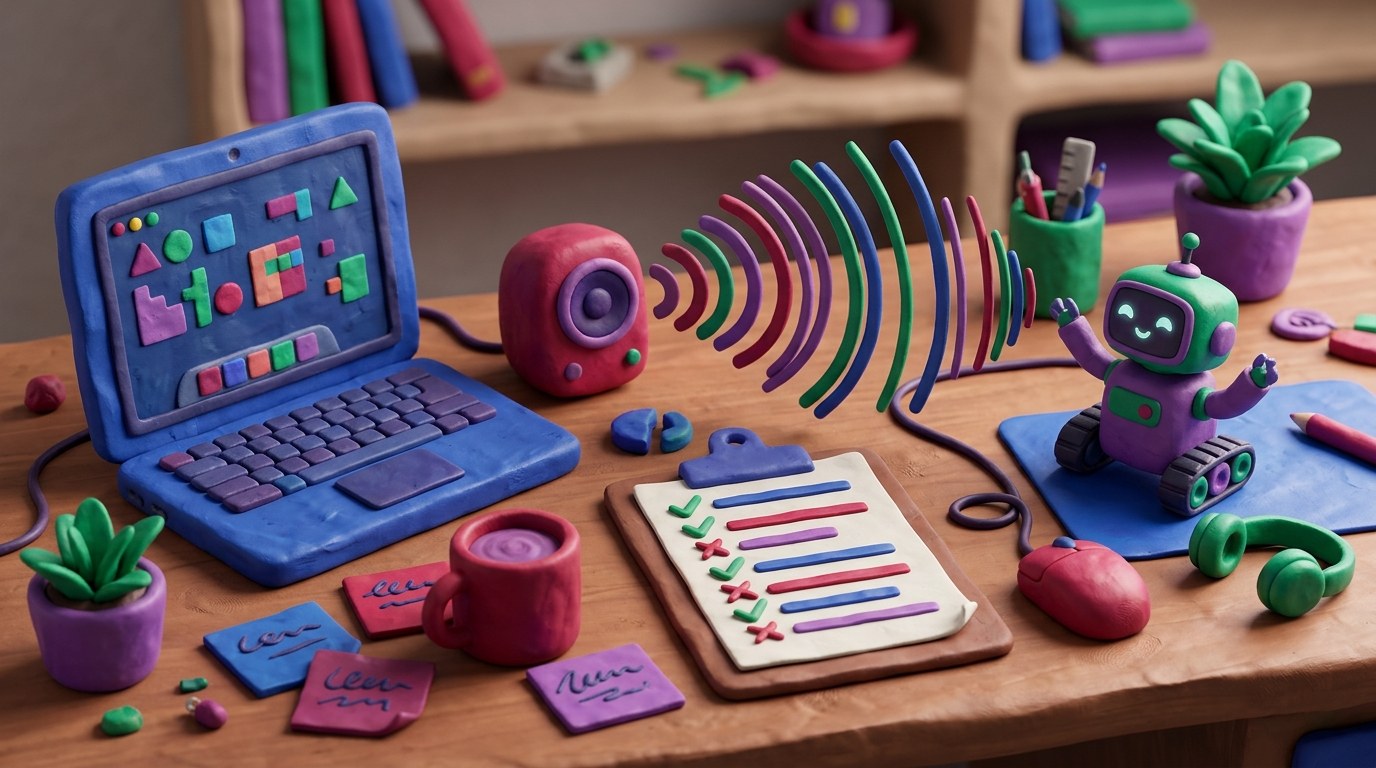
To test a voice assistant with simulated conversations, write a script of 20 to 30 realistic requests, turn them into audio with a text-to-speech tool, play them to the assistant through a speaker while full logging is on, then compare what was asked with what the assistant heard, which tool it used and what it said. Fix the biggest failures and rerun the same script so you can see whether things improved.
Key takeaways
- Your computer can do the talking, so testing runs while you work.
- Logs are the point. Record what was heard, which tool fired and how long each step took.
- Include the awkward cases: mumbling, background noise, half-finished sentences and stop words.
- Rerun the same script after every fix so results are comparable.
In this guide
- What is simulated conversation testing?
- Why test a voice assistant this way?
- What do you need before you start?
- Step 1: Turn on detailed logging
- Step 2: Write a test script of 20 to 30 requests
- Step 3: Generate the test voices
- Step 4: Play the conversations to the assistant
- Step 5: Compare what was asked with what happened
- Step 6: Fix, then rerun the same tests
- Frequently asked questions
- Related posts
This guide follows on from our article AI Desk Robot Assistant: How Mark Kashef Rebuilt a $99 Robot With Claude Fable 5.2. One of the smartest parts of Mark Kashef’s build was the last section of his prompt: instead of talking to his robot for hours himself, he had his Mac’s speakers hold synthetic conversations with it while Claude listened and logged the errors. He says it ran more than 30 conversations without him in the loop.
📘 Main article: Read how the whole assistant was built, and the problems these tests helped fix, in AI Desk Robot Assistant: How Mark Kashef Rebuilt a $99 Robot With Claude Fable 5.2.
What is simulated conversation testing?
Simulated conversation testing means using recorded or computer-generated speech to talk to a voice assistant automatically, so you can test it many times without speaking yourself. It works for desk robots, smart speakers, voice agents on a website and phone bots in a test environment.
Why test a voice assistant this way?
- It saves hours. You do not need to sit and repeat “What’s on my calendar?” fifty times.
- It is repeatable. The same audio every time means you can tell whether a fix really worked.
- It finds the bugs you would not think of. Mark’s list included long lag, missed wake words, a robot that danced forever because its own motors drowned out the “stop” command, and confusion between talking about a tool and asking it to use one.
If your voice agent makes outbound phone calls, also read our guide on How to Test Whether AI Agent Phone Calls Are Ready for Your Business, which covers disclosure and human fallback.
What do you need before you start?
- The voice assistant you want to test, in a test mode that cannot email, buy or call real people
- A computer with a speaker placed near the assistant’s microphone
- A text-to-speech tool to create the test voices (most AI voice tools can do this)
- Logging switched on in the assistant, or an AI coding tool that can read its logs
- A simple spreadsheet for results
Step 1: Turn on detailed logging
For every request, you want a record of five things: what the assistant heard (the transcript), which tool it chose, whether that tool actually ran, what it replied and how long each step took. If you are using an AI coding tool such as Claude Code or Codex to build the assistant, ask it to add this logging for you and to write each test session to its own file.
Step 2: Write a test script of 20 to 30 requests
Write the requests real people will make, in the way they actually speak. Include:
| Type | Example | What it tests |
|---|---|---|
| Normal request | “What’s on my calendar today?” | Basic tool use |
| Mumbled wake word | “’ey lil tokn, what time is it” | Wake word detection |
| Long pause mid-sentence | “Can you… check my email” | Listening window |
| Talking about a tool | “I was reading about calendars” | Not firing a tool by mistake |
| Stop command with noise | “Stop dancing” over music | Stop words in noisy conditions |
| Out of scope | “Send that email for me” | Restrictions hold |
| Follow-up | “And tomorrow?” | Short-term memory |
Aim for 20 to 30 requests to start. Add a column for the result you expect.
Step 3: Generate the test voices
Use a text-to-speech tool to turn each line into an audio file. Vary the voices, speed and accent a little, and make a few versions with background noise, such as music or a fan. If you want to direct how a line is spoken, our guide on directing AI voice acting with script notes shows how.
💡 Tip: Record a few lines in your own voice too, including a mumbled one. Real speech is messier than any synthetic voice.
Step 4: Play the conversations to the assistant
Play the audio files through your computer’s speaker, one at a time, with a short gap between each. A simple script or automation can do this, and an AI coding tool can write it for you. Leave it running while you do something else.
Step 5: Compare what was asked with what happened
Line up your expected results with the logs. Mark’s method was to check which tools were asked for that did not fire, and which fired when they were not asked for. Add columns for:
- Heard correctly? (yes or no)
- Right tool? Did it run?
- Reply correct and short enough?
- Response time in seconds
- Notes on anything odd
You can hand the logs and spreadsheet to an AI model and ask it to group the failures and suggest the most likely cause for each. Keep a human eye on the suggestions before changing anything.
Tip for quick progress: fix the most common failure first, not the most interesting one. One wake word fix might clear a third of your failed tests.
Step 6: Fix, then rerun the same tests
After each fix, play the exact same script again and compare the scores. Keep a short change log so you know which version fixed what. Mark went through 20 versions, using the traces each time so the AI could improve the next one. Once the main script passes, add new tests for any new feature.
Next step: write ten realistic requests for your assistant today, including two awkward ones, and run them through a speaker with logging on. Then read AI Desk Robot Assistant: How Mark Kashef Rebuilt a $99 Robot With Claude Fable 5.2 to see the full build.
Frequently asked questions
Can I test a voice assistant without a speaker?
Some tools let you feed audio files straight in, which is faster. Playing through a speaker is closer to real life because it includes room noise and distance.
How many test conversations do I need?
Start with 20 to 30 requests. Mark says his setup ran more than 30 conversations unattended. Add more as you add features.
Can AI read the logs for me?
Yes, it can group failures and suggest causes, but check its suggestions before you change your setup.
Is it safe to test with my real email and calendar connected?
Only if the assistant cannot send, delete or book anything. Use a test mode or test accounts where you can.
Related posts
- AI Desk Robot Assistant: How Mark Kashef Rebuilt a $99 Robot With Claude Fable 5.2
- How to Test Whether AI Agent Phone Calls Are Ready for Your Business
- How to Show Users What Your AI Agent Is Doing, Without Technical Jargon
