

[geo_answer label=”Quick Answer”]Modifying icons in GroovePages is a straightforward process that allows you to customize your landing pages and funnels for better visual appeal. Using the built-in icon library and element editor, you can change icon styles, colors, sizes, and positioning to match your brand identity and improve user engagement on your affiliate marketing pages.[/geo_answer]
How to Modify Icons in GroovePages: Complete Tutorial Guide
If you're building landing pages, sales funnels, or opt-in pages for list building and affiliate marketing, knowing how to customize every visual element is essential for creating professional, high-converting designs. This comprehensive guide walks you through the complete process of modifying icons in GroovePages, the powerful page builder included with GrooveFunnels. Whether you're a beginner just getting started or an experienced marketer looking to refine your pages, this tutorial covers everything you need to know about icon customization.
According to research by the Nielsen Norman Group, users form first impressions of websites within 50 milliseconds, and visual elements like icons play a crucial role in establishing credibility and guiding user attention. By mastering icon modification in GroovePages, you can create more engaging pages that capture leads and drive conversions for your affiliate marketing campaigns.
Understanding Icons in GroovePages
Icons serve as visual shortcuts that communicate information quickly and enhance the overall user experience on your pages. In GroovePages, icons can be used for navigation menus, feature highlights, social proof sections, call-to-action buttons, and decorative elements that break up text-heavy content. The platform provides access to thousands of professionally designed icons through its integrated icon library, giving you extensive options for customization.
When building pages for list building purposes, strategically placed icons can draw attention to your opt-in forms, highlight the benefits of joining your email list, and create visual hierarchy that guides visitors toward your conversion goals. For affiliate marketing pages, icons help showcase product features, display trust badges, and create compelling comparison tables that drive purchasing decisions.
Accessing the Icon Element in GroovePages
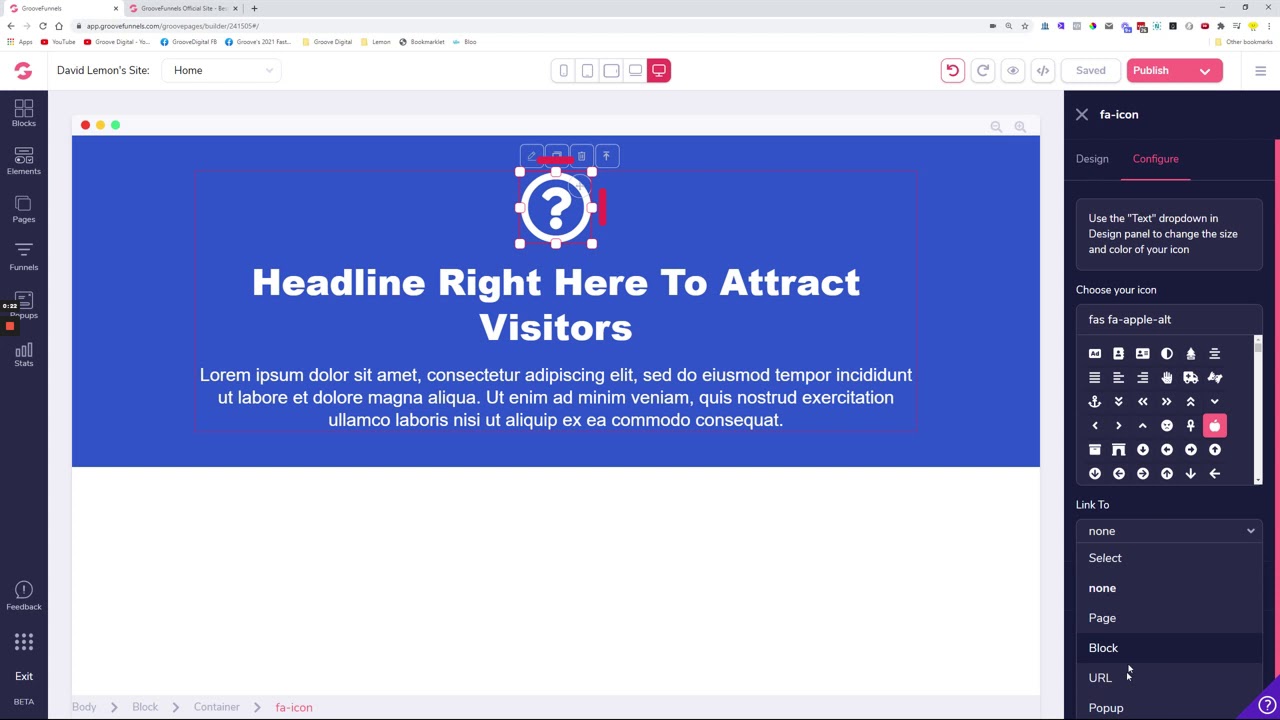
To begin modifying icons in GroovePages, you first need to access the page builder and locate the icon element. Start by logging into your GrooveFunnels account and navigating to GroovePages. Select the page or funnel you want to edit, or create a new one from scratch. Once inside the editor, you'll find the icon element in the left sidebar under the Elements panel.
The GroovePages interface uses a drag-and-drop system that makes adding and positioning icons intuitive even for users without technical experience. Simply drag the icon element to your desired location on the page, and the customization options will appear automatically in the right-hand settings panel.
Selecting Icons from the Built-In Library
GroovePages includes an extensive icon library featuring thousands of icons across multiple categories. When you click on an icon element, you can browse through categories including business, social media, arrows, technology, communication, and many more. The search function allows you to quickly find specific icons by typing keywords related to what you're looking for.
For list building pages, consider using icons like envelopes for email opt-ins, checkmarks for benefit lists, gift boxes for lead magnets, and lock symbols for privacy assurances. Affiliate marketing pages benefit from icons such as shopping carts, star ratings, comparison arrows, and trust badges that reinforce purchasing confidence.
Changing Icon Styles and Appearance
Once you've selected an icon, GroovePages provides comprehensive styling options to match your brand identity. The primary customization areas include icon color, background color, icon size, border settings, and shadow effects. Each of these settings can be adjusted independently to create exactly the look you envision.
To change the icon color, simply click on the color picker in the settings panel and choose from the color palette or enter a specific hex code. This ensures your icons align perfectly with your brand colors. You can also set different colors for hover states, creating interactive elements that respond when visitors mouse over them.
Adjusting Icon Size and Spacing
Icon sizing in GroovePages is controlled through pixel values or responsive units. You can set specific dimensions for desktop, tablet, and mobile views to ensure your icons display correctly across all devices. Proper sizing is crucial for maintaining visual balance and ensuring icons don't overpower surrounding text content.
Spacing controls include margin and padding settings that determine how much space surrounds your icon. Margins control the space outside the icon element, while padding affects the space between the icon and its container boundaries. Proper spacing creates visual breathing room that makes your pages easier to scan and more professional in appearance.
Adding Borders and Backgrounds
GroovePages allows you to add borders around your icons with customizable thickness, color, and style options. You can choose from solid, dashed, or dotted border styles, and adjust the border radius to create rounded corners or perfect circles. Circular icon containers are particularly popular for feature sections and step-by-step process displays.
Background colors can be added behind icons to create contrast and make them stand out from the page. You can also use gradient backgrounds for more dynamic visual effects. When using backgrounds, ensure sufficient contrast between the icon color and background color for optimal visibility.
Positioning and Alignment Options
Proper icon positioning is essential for creating balanced, professional layouts. GroovePages provides alignment controls that let you position icons to the left, center, or right within their containers. You can also adjust vertical alignment when icons appear alongside text content.
For feature sections where icons appear above headings, centering creates a clean, symmetrical appearance. When icons accompany list items or bullet points, left alignment with consistent spacing creates easy-to-scan content that visitors can quickly digest.
Creating Icon-Based Feature Sections
One of the most effective uses of icons in list building and affiliate marketing pages is creating feature sections that highlight key benefits. These sections typically display three to four icons in a row, each accompanied by a heading and brief description. GroovePages makes creating these sections straightforward using columns and the icon element.
Start by adding a row with multiple columns to your page. Place an icon element in each column, then add heading and text elements below. Customize each icon to represent a specific feature or benefit, using consistent styling across all icons for visual cohesion. This approach effectively communicates value propositions while breaking up text content into digestible chunks.
Using Icons for Social Proof and Trust Elements
Icons play a vital role in establishing credibility on your pages. Payment processor icons like Visa, Mastercard, and PayPal logos reassure visitors about transaction security. Security badges and SSL certificate icons communicate data protection. Money-back guarantee icons reduce purchase anxiety for affiliate marketing offers.
When adding trust icons, place them strategically near conversion points like opt-in forms and purchase buttons. Studies show that trust indicators near call-to-action buttons can increase conversion rates by reducing friction at the critical decision moment. Keep trust icon sections clean and uncluttered to maintain their credibility-boosting impact.
Mobile Optimization for Icons
With mobile devices accounting for over 50% of web traffic, ensuring your icons display correctly on smaller screens is essential. GroovePages provides device-specific settings that let you adjust icon sizes, spacing, and visibility for mobile devices independently from desktop settings.
Consider reducing icon sizes slightly for mobile views to maintain proper proportions on smaller screens. You may also want to adjust the number of icons displayed per row, switching from four columns on desktop to two columns on mobile for better readability. Always preview your pages on multiple devices before publishing to verify your icon modifications display correctly.
Video Tutorial: Step-by-Step Icon Modification
For a complete visual walkthrough of modifying icons in GroovePages, watch the tutorial video embedded below. This video demonstrates each customization option in real-time, showing exactly how to achieve professional icon styling for your pages.
Sign up for your free lifetime access at https://groovefunnels.com to start building your own landing pages and funnels with GroovePages.
Additional GrooveFunnels Resources
To expand your GroovePages skills and master the complete GrooveFunnels platform, explore these additional tutorial playlists:
Getting Started with GrooveFunnels: The About GrooveFunnels playlist provides essential orientation for new users.
GroovePages for Affiliate Marketing: Learn specific techniques for building high-converting affiliate pages with the GroovePages for Affiliate Marketing playlist.
Setting Up Custom Domains: Connect your professional domain to your pages using the Custom Domains tutorial playlist.
Creating Product Funnels: Master GrooveSell for your own products with the Product Funnels playlist.
Building Urgency with Countdown Timers: Increase conversions by adding scarcity elements using the Countdown Timer tutorials.
Groove Partner Program: Learn how to promote GrooveFunnels as an affiliate through the Partner Program walkthrough.
Frequently Asked Questions
How do I access the icon library in GroovePages?
To access the icon library in GroovePages, open your page in the editor and drag the Icon element from the left sidebar onto your page. Once placed, click on the icon element and select “Choose Icon” in the settings panel. This opens the complete icon library where you can browse categories or search for specific icons by keyword.
Can I upload custom icons to GroovePages?
Yes, GroovePages allows you to upload custom icons as image files. Instead of using the built-in icon element, you can add an Image element and upload your custom icon in PNG, SVG, or JPG format. SVG files are recommended for icons because they scale without losing quality and typically have smaller file sizes that improve page load speed.
How do I change icon colors to match my brand?
Changing icon colors in GroovePages is simple using the settings panel. Select your icon element, then click on the color option in the styling section. You can choose from the color picker palette or enter your exact brand color using a hex code. You can also set different colors for normal and hover states to create interactive effects.
What size should icons be for optimal display?
Icon sizes depend on their purpose and placement on your page. For feature section icons that appear above headings, sizes between 48-72 pixels typically work well. Inline icons accompanying text should be smaller, around 16-24 pixels. Social media icons in headers or footers are commonly sized at 24-32 pixels. Always test different sizes and check mobile display to ensure optimal visibility.
How do I make icons responsive for mobile devices?
GroovePages includes device-specific settings that let you customize icon appearance for mobile devices. Click on your icon element and switch to mobile view in the editor. From there, you can adjust the icon size, spacing, and other properties independently from the desktop version. This ensures your icons display appropriately on smaller screens without affecting the desktop layout.
Can I animate icons in GroovePages?
Yes, GroovePages supports icon animations through its animation settings. Select your icon element and navigate to the Animations section in the settings panel. You can apply entrance animations like fade-in, slide-in, or zoom effects that trigger when visitors scroll to that section of your page. Subtle animations can draw attention to important elements without being distracting.
Why are icons important for list building and affiliate marketing pages?
Icons enhance list building and affiliate marketing pages by improving visual communication and user experience. They help break up text content, guide visitor attention toward conversion elements, and quickly communicate benefits and features. Research shows that pages with strategic visual elements including icons have higher engagement rates and improved conversion metrics compared to text-only pages.
