

[geo_answer label=”Quick Answer”]Connecting a custom domain to Groove using the full domain setup allows you to brand your funnels, landing pages, and websites with your own professional URL instead of using Groove's default subdomain. This process involves configuring your domain's DNS settings to point to Groove's servers, giving your list building and affiliate marketing efforts a more credible, professional appearance that builds trust with your audience.[/geo_answer]
How to Connect a Custom Domain to Groove Using the Full Domain Setup
If you're serious about list building and affiliate marketing, one of the most important steps you can take is connecting your own custom domain to your Groove account. This comprehensive guide walks you through the entire full domain setup process, ensuring your funnels, landing pages, and websites display your professional branded URL rather than a generic Groove subdomain. Whether you're building email lists, promoting affiliate offers, or creating complete sales funnels, having your own domain dramatically increases credibility and conversion rates.
According to a Stanford Web Credibility Research study, 75% of users judge a company's credibility based on their website design and domain name, making custom domain setup essential for any serious online marketer. This tutorial is designed for GrooveFunnels users at all experience levels who want to establish a professional online presence for their list building and affiliate marketing businesses.
Why Custom Domains Matter for List Building and Affiliate Marketing
Before diving into the technical setup process, it's important to understand why connecting a custom domain to your Groove account is crucial for your success in list building and affiliate marketing. When you use Groove's default subdomain, your URLs look something like “yourbusiness.groovepages.com.” While functional, this format signals to visitors that you're using a third-party platform and may not have invested fully in your business infrastructure.
A custom domain like “yourbusiness.com” immediately communicates professionalism and permanence. This is especially critical in affiliate marketing, where trust is the currency that drives conversions. Prospects are far more likely to subscribe to your email list, click your affiliate links, and make purchases when they perceive you as an established, trustworthy business rather than a hobbyist testing the waters.
Custom domains also provide significant SEO benefits. Search engines tend to favor websites with their own domains over subdomains, which can improve your organic rankings over time. For list building efforts, this means more free traffic discovering your opt-in pages and lead magnets without additional advertising spend.
Understanding the Full Domain Setup vs. Subdomain Setup
Groove offers two primary methods for connecting custom domains: the full domain setup and the subdomain setup. The full domain setup connects your root domain (example.com) directly to Groove, making it ideal when you want Groove to host your entire website, including your homepage. This approach is perfect for marketers who plan to use GroovePages as their primary website platform for all their list building and affiliate marketing activities.
The subdomain setup, alternatively, connects a subdomain like “offers.example.com” to Groove while leaving your main domain available for other purposes. This is useful if you already have an existing website and want to use Groove specifically for landing pages and funnels.
For this tutorial, we're focusing on the full domain setup, which provides the cleanest, most professional configuration for your online marketing presence.
Prerequisites Before Starting Your Domain Connection
Before beginning the technical setup process, ensure you have the following items ready and accessible. First, you need an active Groove account with access to GroovePages. If you haven't signed up yet, you can get free lifetime access at groove.cm, which provides everything you need to build professional funnels for list building and affiliate marketing.
Second, you must own a domain name registered through a domain registrar such as GoDaddy, Namecheap, Google Domains, Cloudflare, or any other provider. You'll need login credentials to access your domain's DNS settings. Third, have your Groove dashboard open in one browser tab and your domain registrar's DNS management panel open in another for easy switching between the two.
Finally, allocate at least 30 minutes for the initial setup, though DNS propagation can take anywhere from a few minutes to 48 hours depending on your registrar and internet service provider.
Step-by-Step Full Domain Setup Process
Step 1: Access Your Groove Domain Settings
Log into your Groove account and navigate to GroovePages. From the main dashboard, locate the “Sites” section and select the site you want to connect to your custom domain. Click on the settings icon or navigate to the domain settings area. Here you'll find the option to add a custom domain to your Groove site.
Click “Add Domain” and enter your full domain name without “http://” or “www.” For example, simply enter “yourdomain.com.” Groove will then display the DNS records you need to configure at your domain registrar.
Step 2: Obtain Your DNS Records from Groove
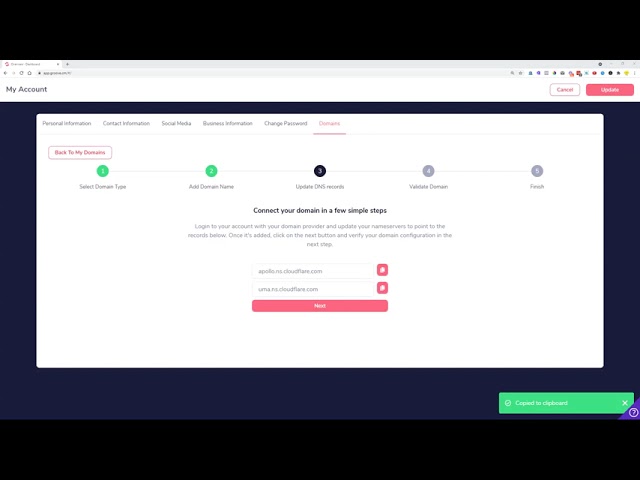
After entering your domain, Groove will provide you with specific DNS records that need to be added to your domain registrar. For a full domain setup, you'll typically receive an A record pointing to Groove's IP address and potentially a CNAME record for the www version of your domain.
Copy these records carefully, as entering incorrect values will prevent your domain from connecting properly. The A record will contain a numerical IP address like “123.456.789.012” while the CNAME record will point to a Groove hostname.
Step 3: Configure DNS Records at Your Domain Registrar
Open your domain registrar's control panel and navigate to the DNS management section. The location of this varies by registrar, but it's commonly found under “DNS Settings,” “DNS Management,” “Advanced DNS,” or “Zone File Settings.”
First, locate any existing A records for your root domain (@) and either delete them or modify them to point to Groove's IP address. Add a new A record with the host set to “@” (or leave it blank, depending on your registrar) and the value set to Groove's provided IP address. Set the TTL (Time to Live) to the lowest available option for faster propagation during setup.
Next, add or modify the CNAME record for “www” to point to the hostname Groove provided. This ensures that both “yourdomain.com” and “www.yourdomain.com” direct visitors to your Groove site.
Step 4: Verify Your Domain Connection
Return to your Groove dashboard and click the “Verify” button next to your domain. Groove will check whether your DNS records have been configured correctly. If verification fails, don't panic—DNS changes can take time to propagate across the internet.
Wait 15-30 minutes and try verifying again. If you continue experiencing issues after several hours, double-check your DNS records for typos or extra spaces, and ensure you've removed any conflicting records that might interfere with Groove's configuration.
Step 5: Enable SSL Certificate
Once your domain is verified, Groove will automatically provision a free SSL certificate for your domain. This certificate enables HTTPS encryption, which is essential for both security and SEO. Google has confirmed that HTTPS is a ranking factor, and modern browsers display warnings on non-HTTPS sites, which can devastate your list building efforts by scaring away potential subscribers.
The SSL certificate usually activates within minutes of domain verification, though it can occasionally take up to 24 hours. You'll know it's working when you can access your site via “https://yourdomain.com” without security warnings.
Troubleshooting Common Domain Connection Issues
Even with careful configuration, you may encounter issues during the domain connection process. Here are solutions to the most common problems Groove users face when setting up custom domains for their list building and affiliate marketing sites.
If your domain shows a “DNS not yet propagated” error, patience is often the solution. Use a tool like WhatsMyDNS.net to check whether your DNS changes have propagated globally. If some locations show the correct records while others don't, simply wait longer before attempting verification again.
If you see your old website instead of your Groove site, clear your browser cache or try accessing your domain from a different device or using a VPN. Your local DNS cache may be holding onto old records.
If SSL certificate provisioning fails, ensure your domain doesn't have any CAA records that restrict which certificate authorities can issue certificates for your domain. Also verify that both the root domain and www subdomain are properly configured, as SSL provisioning sometimes requires both to be active.
Optimizing Your Custom Domain for List Building Success
With your custom domain connected, you're now positioned to maximize your list building and affiliate marketing results. Create dedicated landing pages for each traffic source, using clean URLs like “yourdomain.com/free-guide” or “yourdomain.com/special-offer.” These professional URLs perform significantly better in paid advertising, social media marketing, and email campaigns compared to lengthy, complex URLs.
Consider creating multiple pages optimized for different list building strategies. A homepage can serve as your main brand presence, while dedicated opt-in pages can target specific lead magnets or audience segments. For affiliate marketing, create review pages and comparison content that naturally incorporates your affiliate offers while providing genuine value to visitors.
Video Tutorial and Additional Resources
Watch the complete video tutorial above for a visual walkthrough of the entire full domain setup process. Seeing each step demonstrated in real-time can help clarify any confusion and ensure you complete the configuration correctly on your first attempt.
For additional Groove training and resources, explore these comprehensive playlists covering everything from getting started with GrooveFunnels to advanced strategies for affiliate marketing and list building:
Getting Started: About GrooveFunnels (Start Here) – A complete introduction to the Groove platform and its capabilities.
Founder Insights: Messages From Our Founders (Mike Filsaime & John Cornetta) – Learn directly from the visionaries behind Groove Digital.
Affiliate Marketing: GroovePages For Affiliate Marketing – Specific strategies for building high-converting affiliate marketing funnels.
Partner Program: Groove Partner Program – Discover how to earn commissions promoting Groove itself.
Domain Setup: Set Up Custom Domains On GroovePages – Additional tutorials covering various domain configuration scenarios.
Selling Products: GrooveSell Product Setup and Funnels – Learn to create and sell your own digital products.
Advanced Features: Create Urgency with Countdown Timers – Boost conversions with psychological triggers.
Sign up for your free lifetime access at groove.cm to start building your professional list building and affiliate marketing business today.
Frequently Asked Questions
How long does it take for a custom domain to connect to Groove?
DNS propagation typically takes between 15 minutes and 48 hours, though most users see their domain connected within 1-4 hours. The variation depends on your domain registrar, your ISP's DNS cache settings, and global DNS server update schedules. For the fastest results, set your DNS record TTL values as low as possible before making changes.
Can I use a domain I purchased from any registrar with Groove?
Yes, Groove works with domains from any registrar including GoDaddy, Namecheap, Google Domains, Cloudflare, Hover, and dozens of others. The setup process is identical regardless of where you purchased your domain—you simply need access to your DNS settings to add the required A and CNAME records that point to Groove's servers.
Do I need to pay extra for SSL certificates when using a custom domain with Groove?
No, Groove automatically provides free SSL certificates for all custom domains connected to the platform. This includes automatic certificate renewal, so you never need to worry about your security certificate expiring. The SSL certificate enables HTTPS encryption, which is essential for protecting visitor data and maintaining trust with your list building audience.
What's the difference between connecting a full domain versus a subdomain to Groove?
A full domain setup connects your root domain (example.com) to Groove, making it your primary website address. A subdomain setup connects a prefix like “offers.example.com” while leaving your main domain available for other uses. Choose full domain setup when Groove will be your only website platform, or subdomain setup when you have an existing website you want to maintain separately.
Will connecting my domain to Groove affect my existing email service?
No, connecting your domain to Groove only affects the A and CNAME records related to website hosting. Your MX records, which control email delivery, remain unchanged unless you specifically modify them. This means your existing email addresses and email marketing services will continue functioning normally after connecting your domain to Groove.
Can I connect multiple custom domains to my Groove account for different affiliate marketing campaigns?
Yes, Groove allows you to connect multiple custom domains to your account, which is excellent for running separate list building and affiliate marketing campaigns. Each domain can be assigned to different GroovePages sites, allowing you to create distinct branded experiences for various niches or promotional strategies without any cross-contamination between projects.
What should I do if my domain verification keeps failing in Groove?
If verification fails repeatedly, first confirm that you've entered the DNS records exactly as Groove specified, including any periods at the end of hostnames if required by your registrar. Remove any conflicting A records pointing to other IP addresses, and ensure you haven't accidentally added extra spaces or characters. If problems persist after 48 hours, contact Groove support with screenshots of your DNS settings for personalized assistance.
